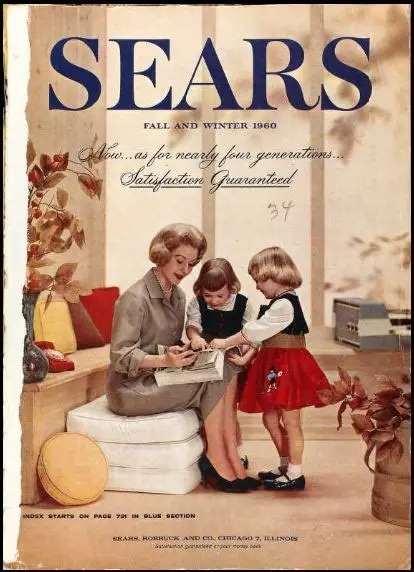
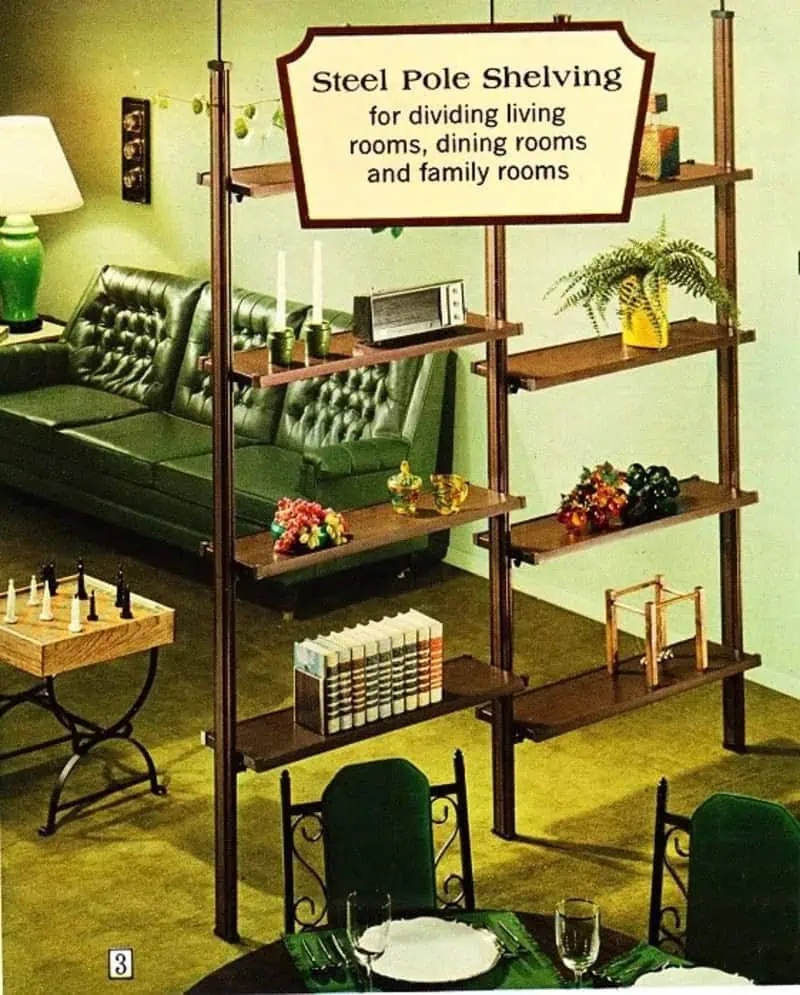
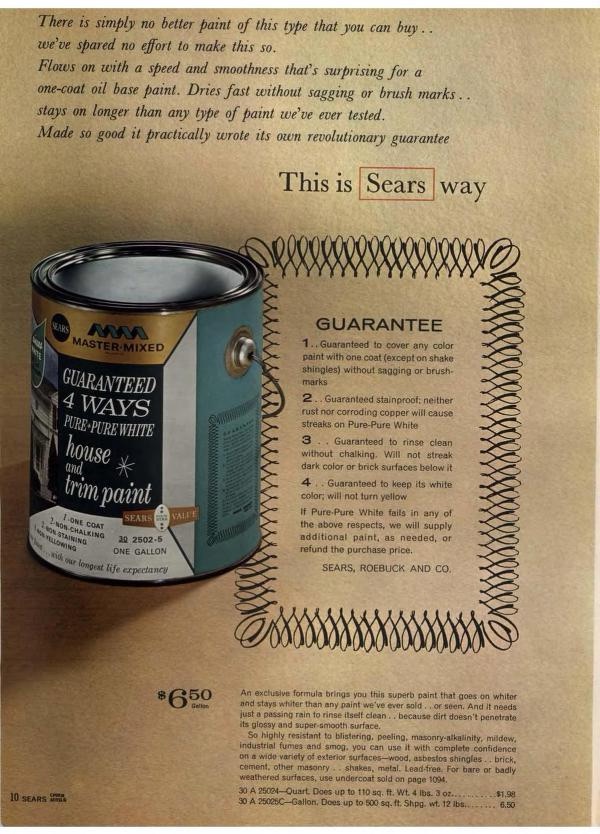
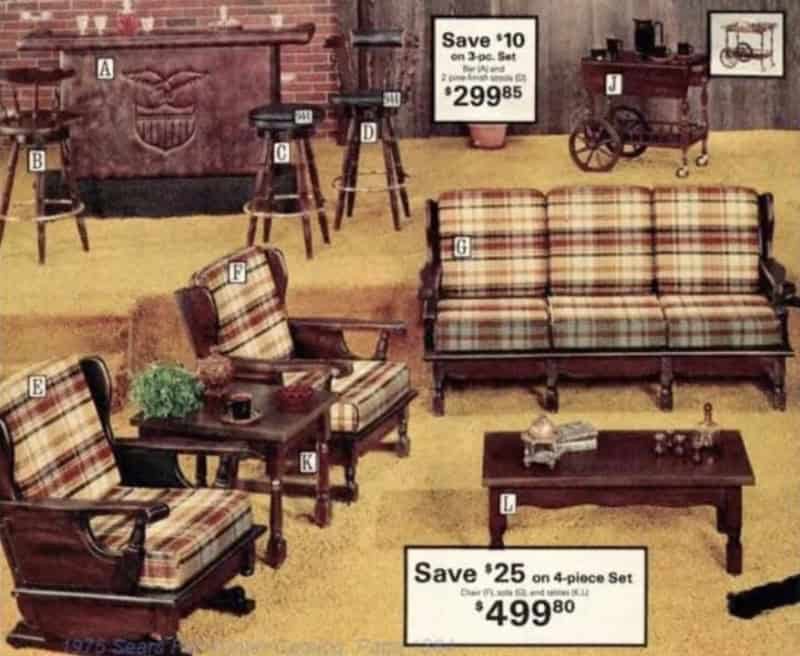
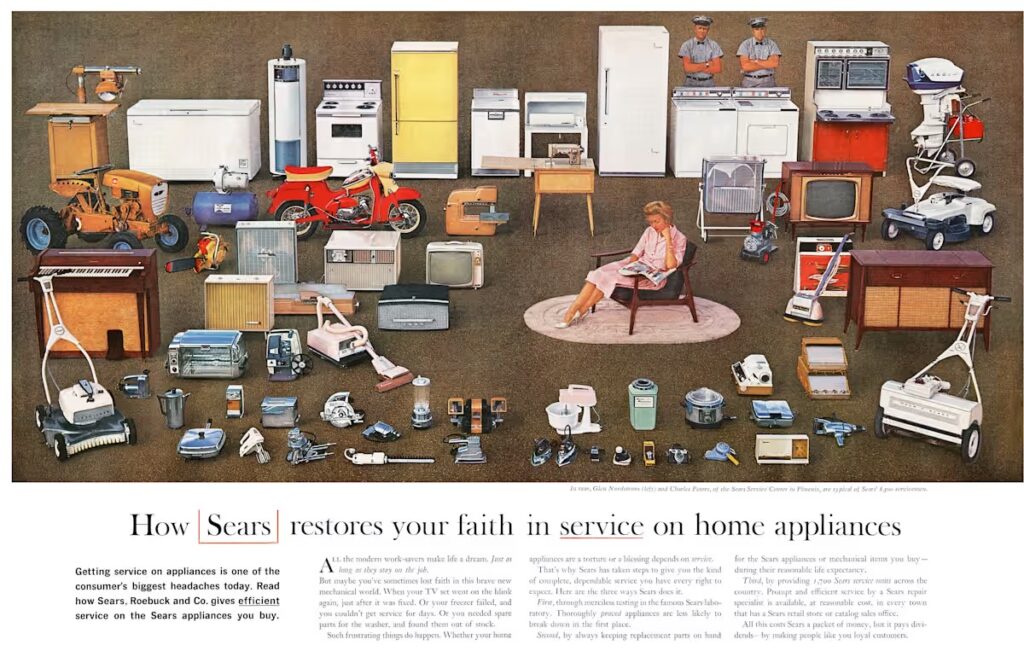
I’ve loved house plans since I was a little girl. My friend, Jackie, and I, used to draw them on notebook paper and then sit down with the Sears Catalog and fill every room. In the 60’s, the catalog was huge and filled with appliances, floor coverings, furnishings, wallpaper, bedding, everything you might need to be a designer. We both became teachers, but I think we would’ve made great purchasing agents!
Sears had everything, even something to throw at your brother!
I digress!
I even took CAD (Computer Assisted Drafting) classes after my husband was diagnosed with MS. I enjoyed modifying plans for accessibility. I enrolled in a certified accessibility program, but could not pursue it. I had too many papers to grade!
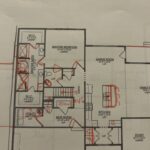
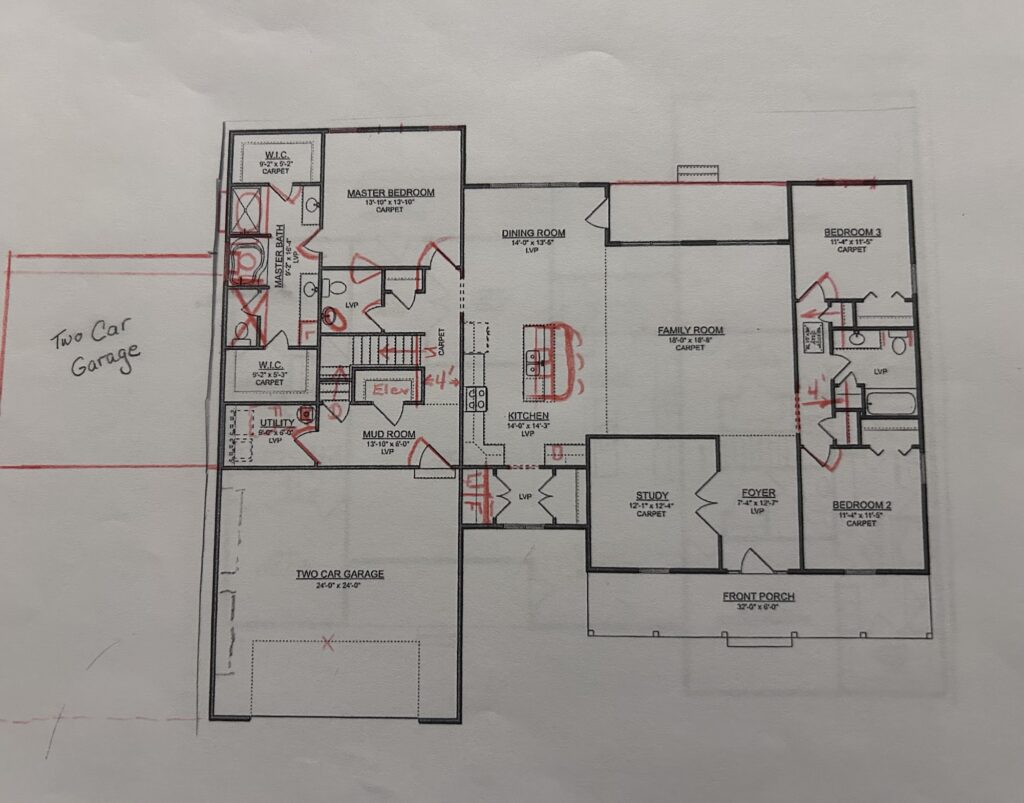
I wrote a couple of days ago that I had found the perfect floor plan. Well, almost. It needed tweaking for accessibility. I didn’t get out my CAD software, though I thought about it. I just scanned and printed the floor plan from the builder’s brochure. Then I drew all over it with my red colored pencil. What fun! It was just like being a little girl, again! I wish there was still a Sears Catalog to choose finishings from.
Note that the original floor plan is the intellectual property of Sedgewick Homes.
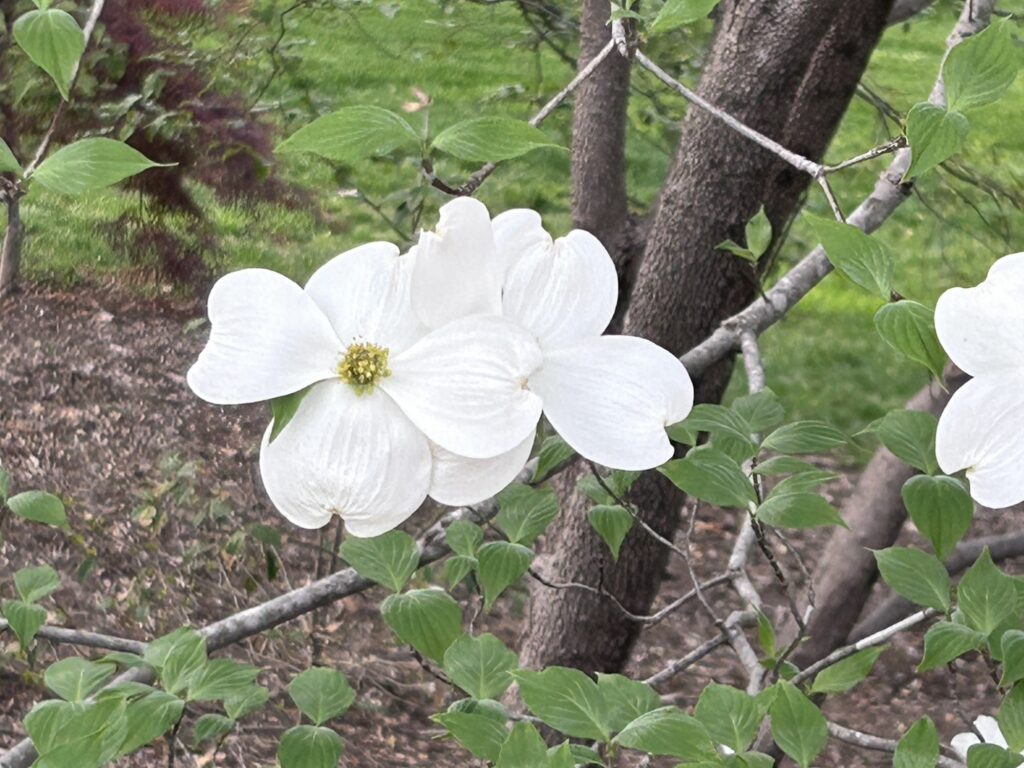
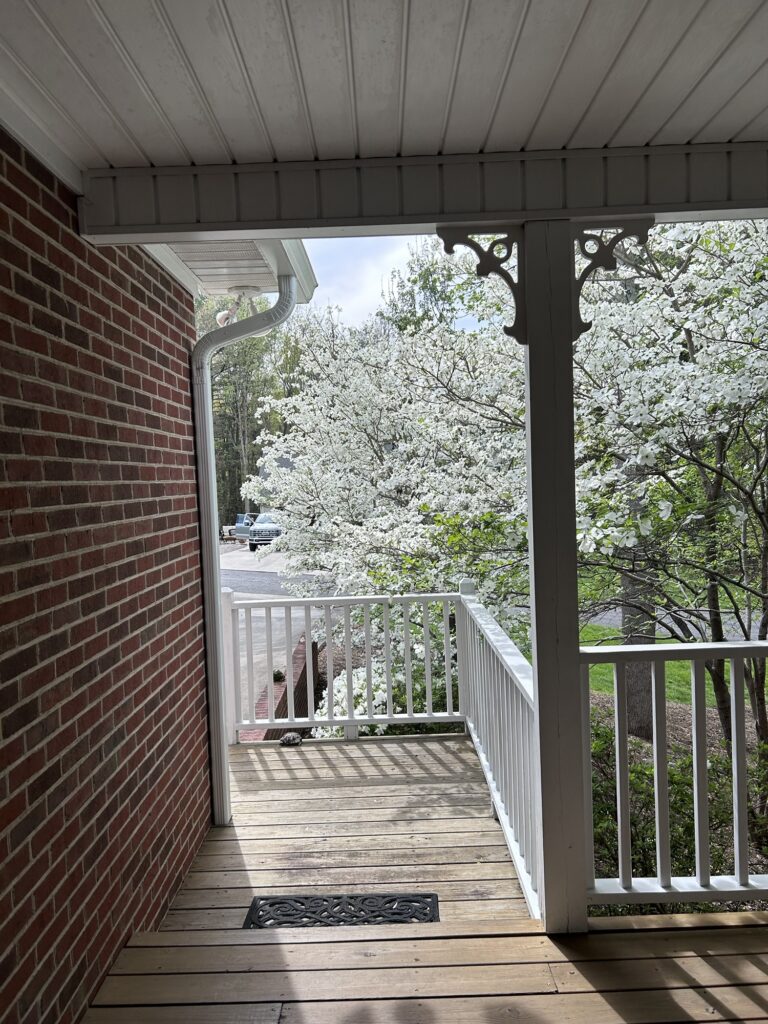
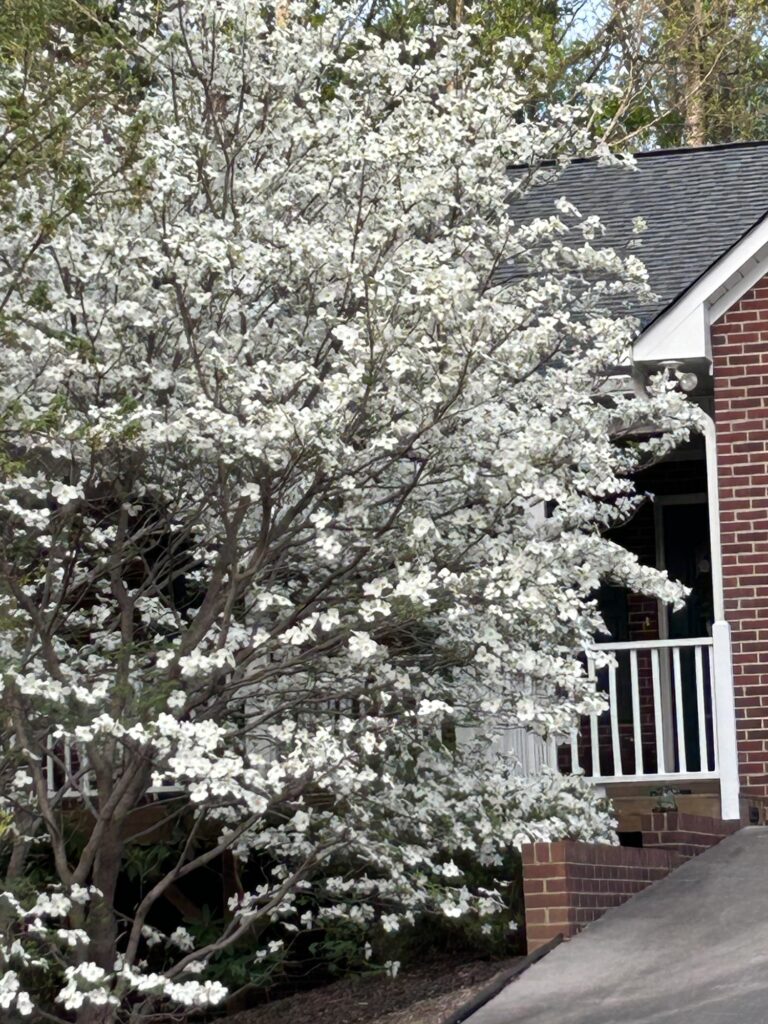
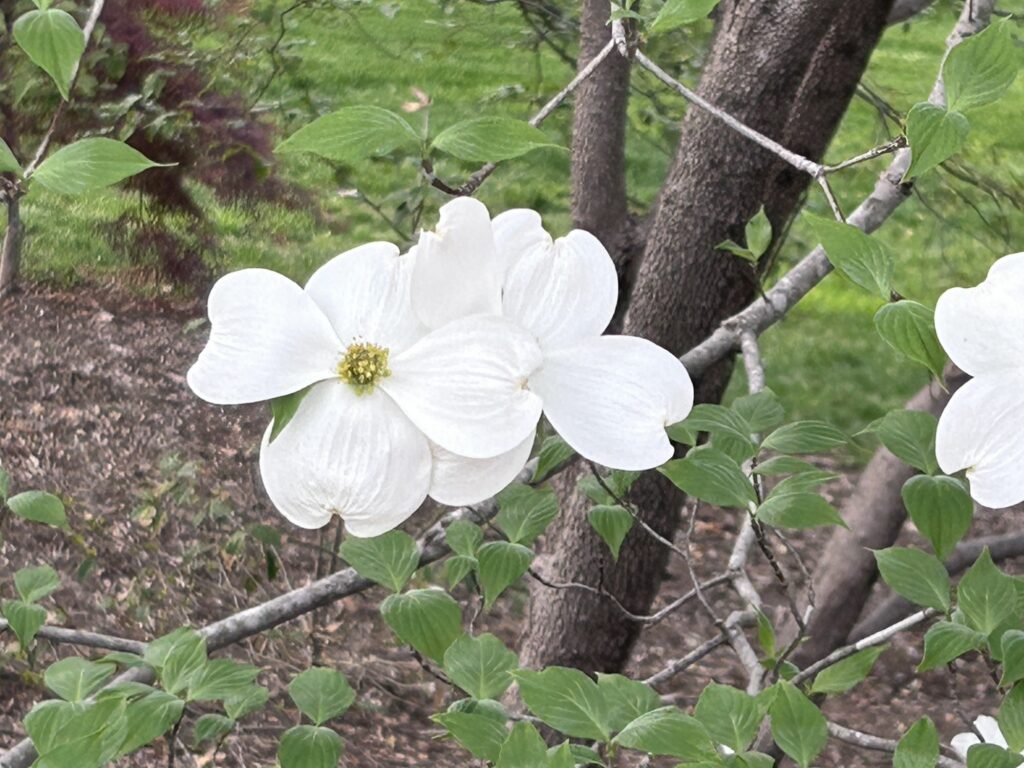
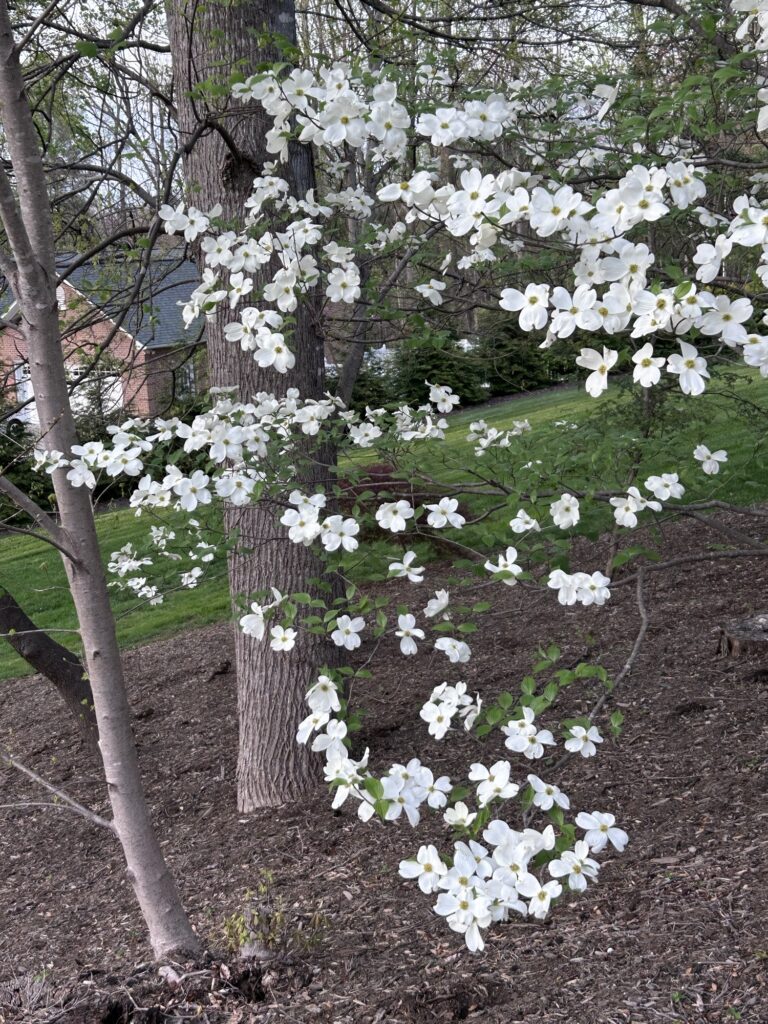
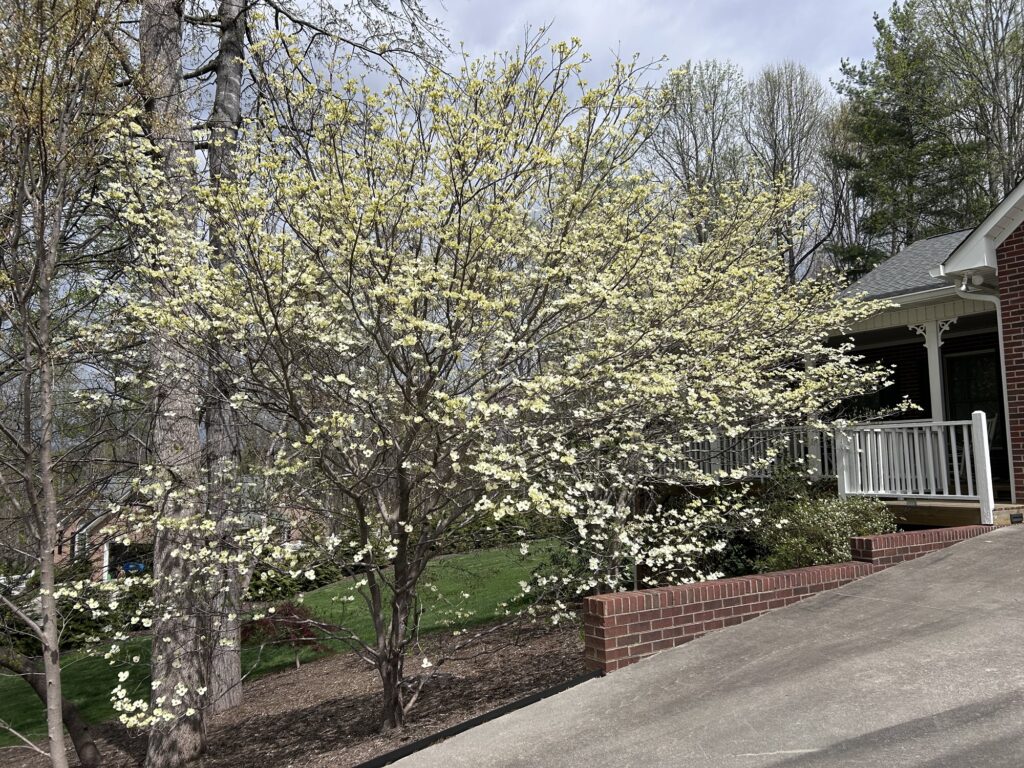
The dogwoods in front of my house have been glorious!
Easter SunsetForgive me, I get carried away!
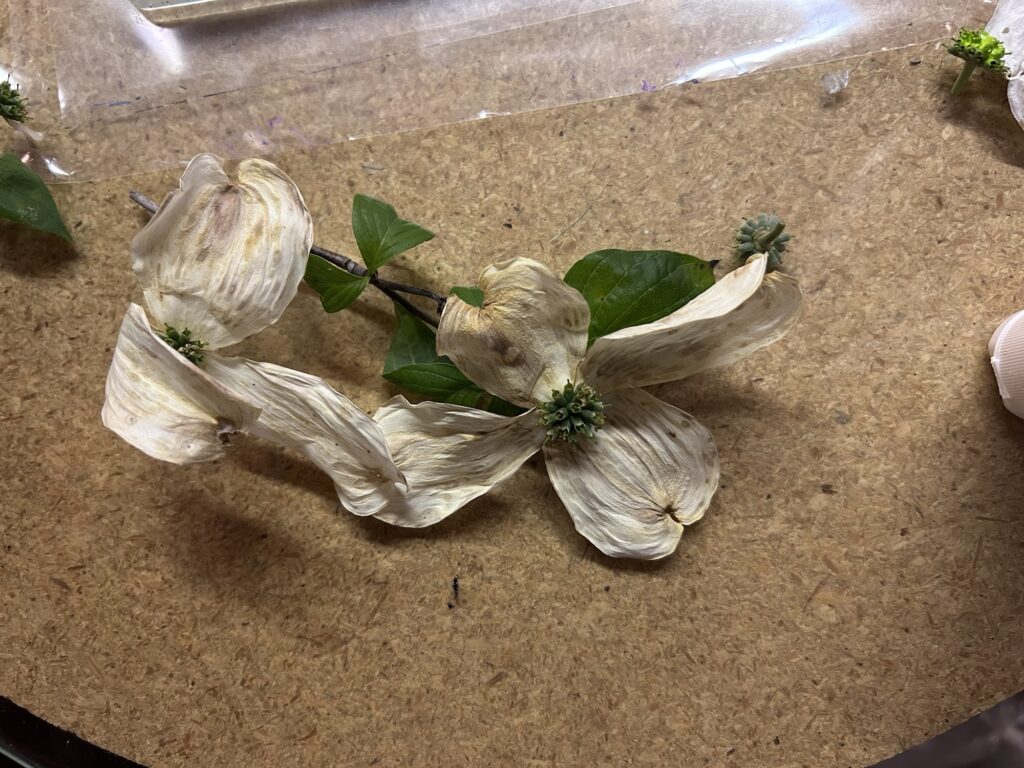
Now, the dogwoods are past their season. Surviving blossoms are pitiful.
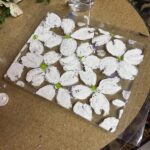
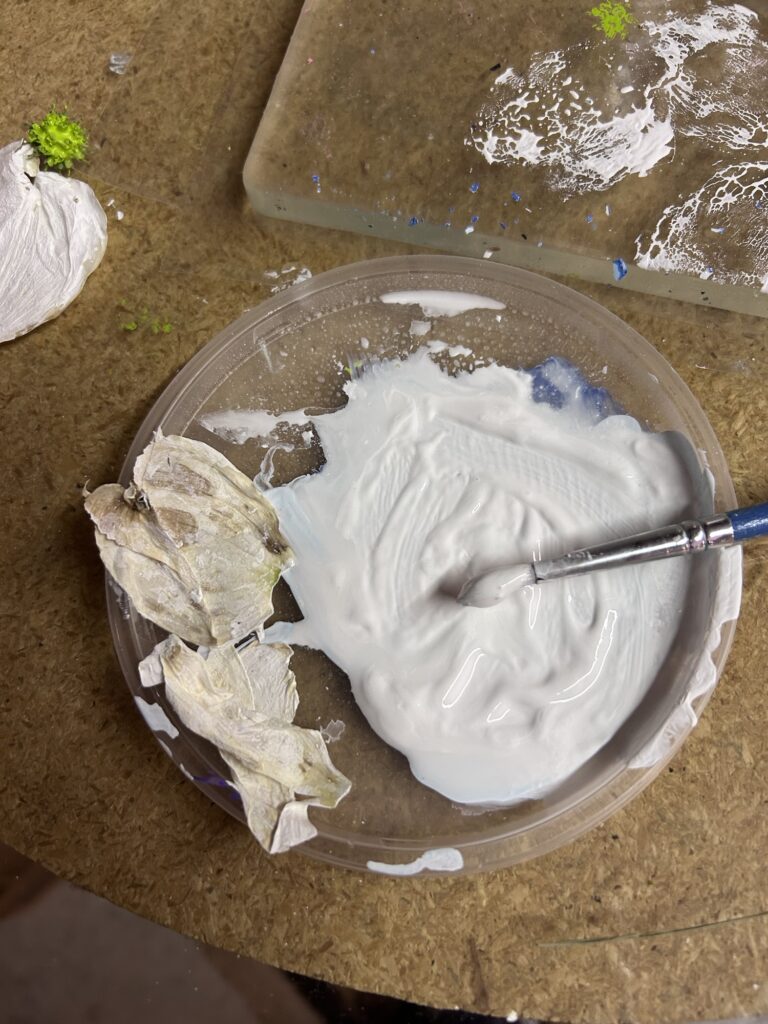
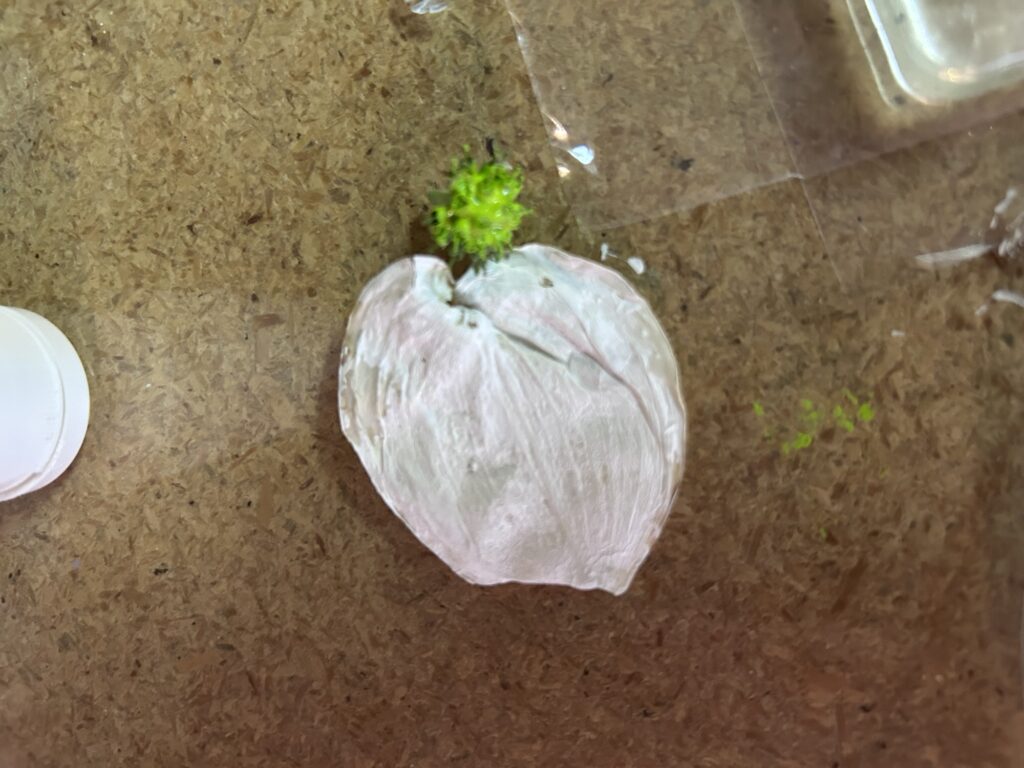
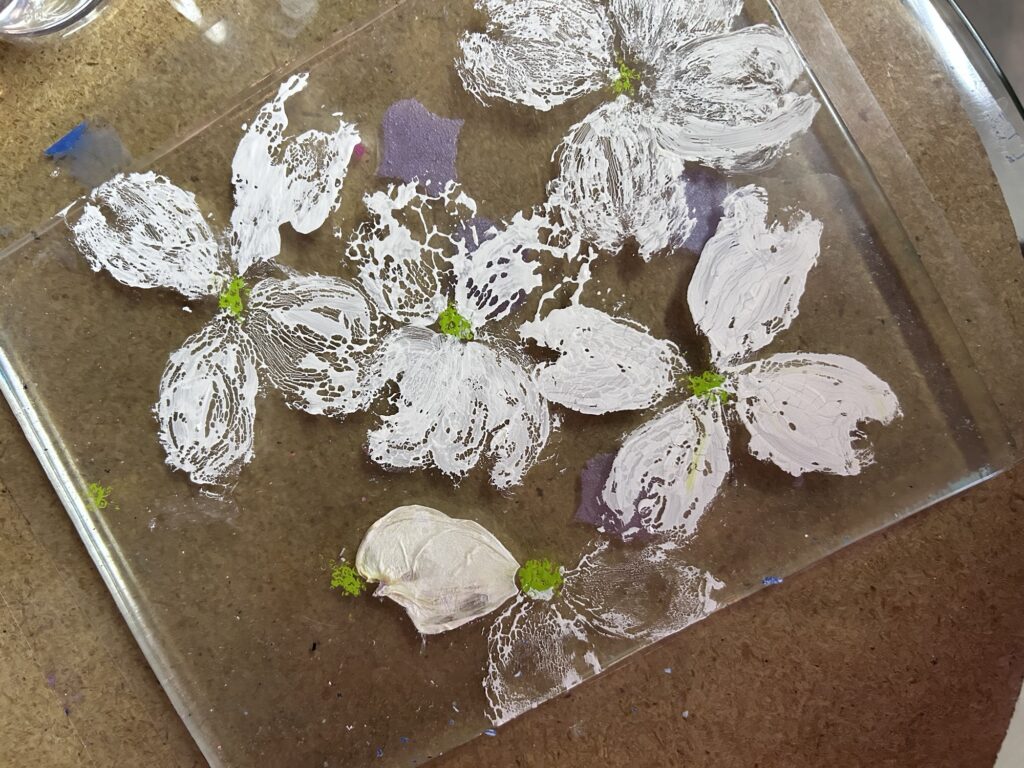
I thought maybe I could use them to print on the gel plate. I used some blossoms to pull paint from the plate.
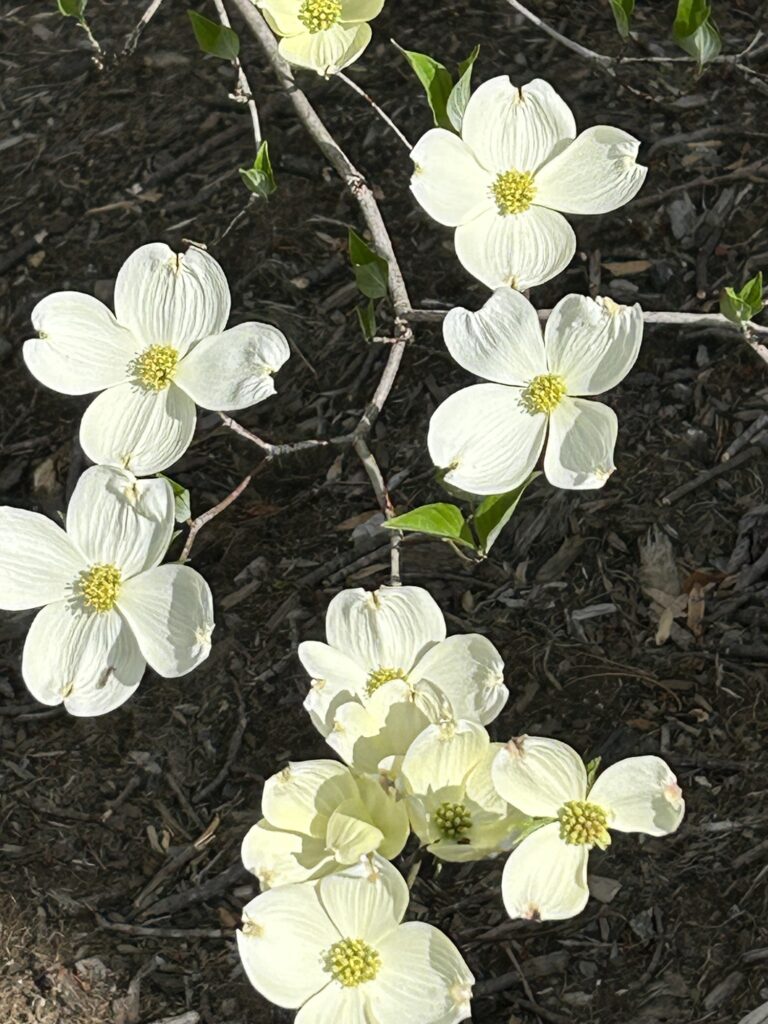
I used others like stamps, painting the bracts (petals,) and center.
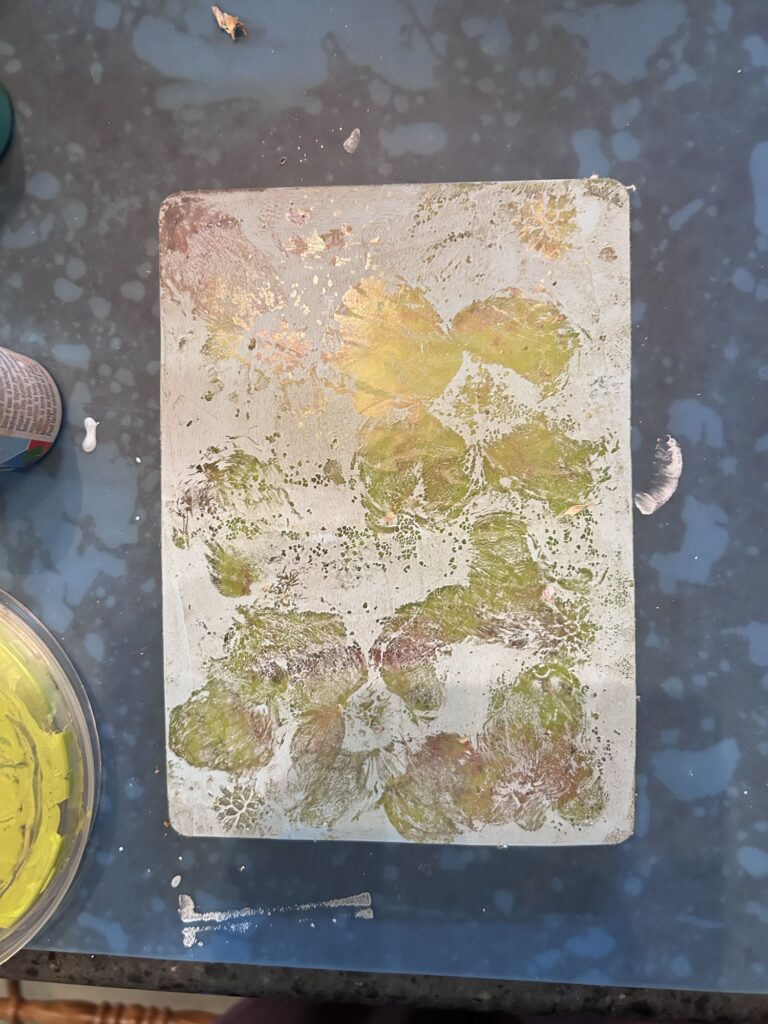
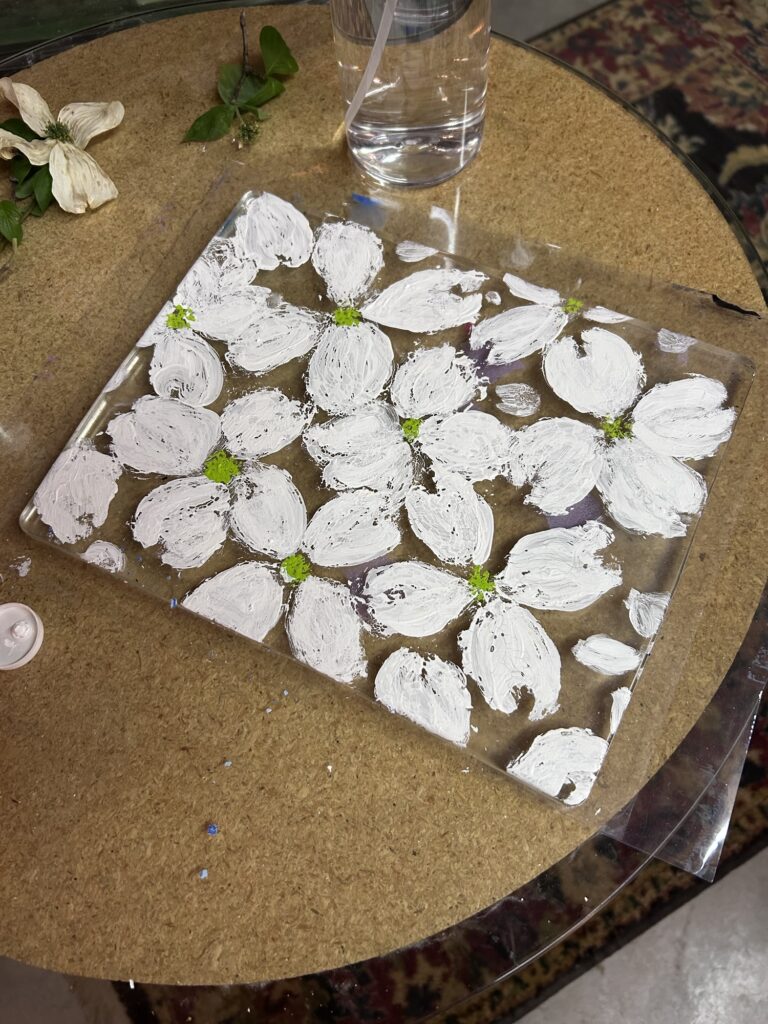
The paint “celled” so badly, i kept adding paint till I produced this.
I’m anxious to pull this, but I can’t decide between light blue or a rich leafy green.
I also spent the better part of today dodging a telephone scam. Maybe that’s a craft, and I can find the energy to share that someday. For today, I’m exhausted.
That’s what I call my Chatgpt bot. He’s definitely male because he gets Kent’s point of view.
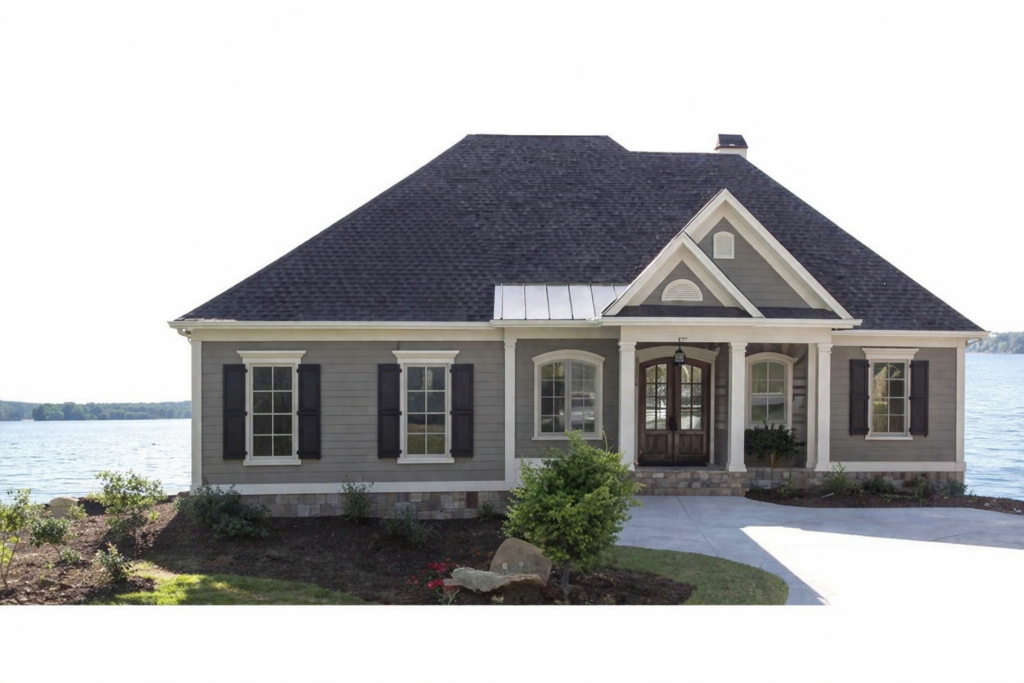
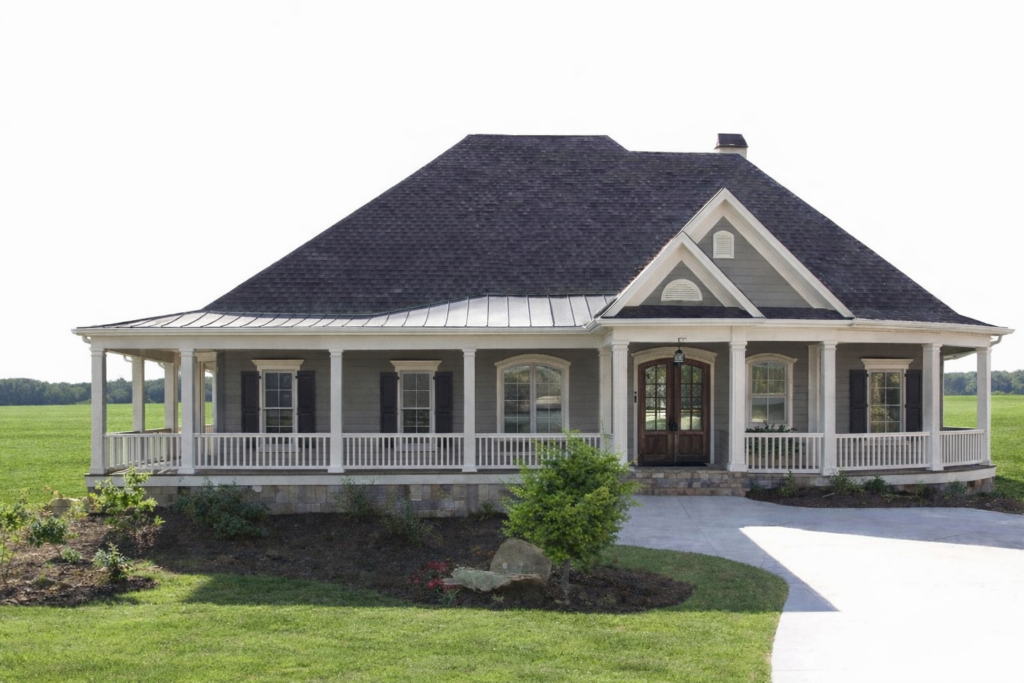
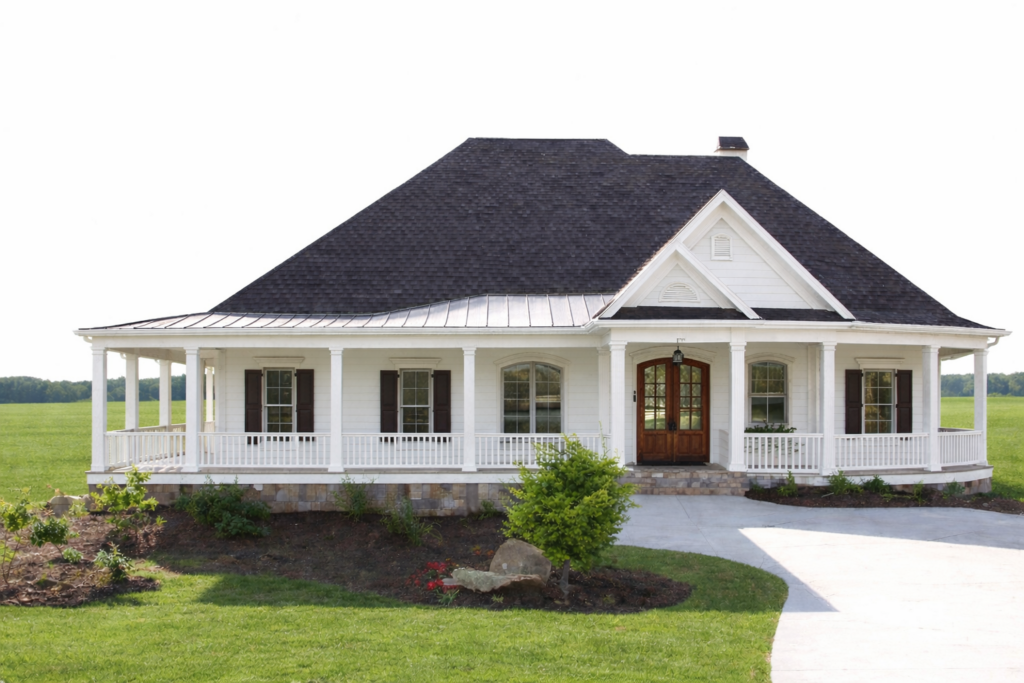
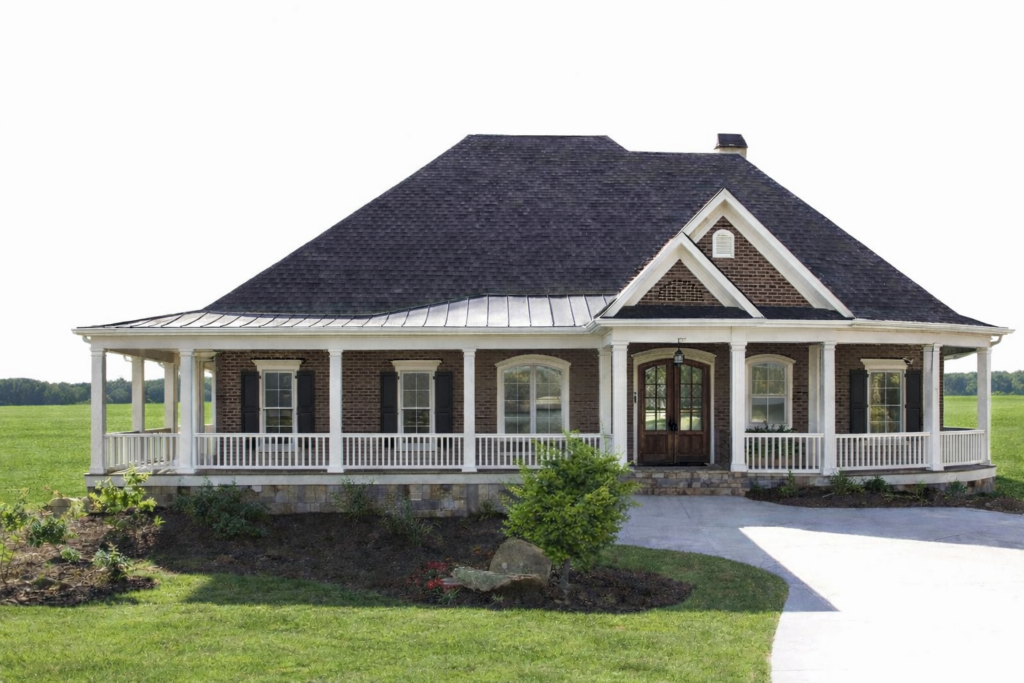
I’ve found a house plan I love, but not the front facade. The rear elevation is perfect for the lot we’re planning to buy. The front would work, but Kent wants a full wrap around porch. I am using Chatgpt (AI) to make that happen.
Here’s the evolution in rendering photos:
Original facadeGarage removed (for now)Here’s the porch addition! The water has been replaced with a field, like our lot.I asked to see it in white…and dark brick with white trim!
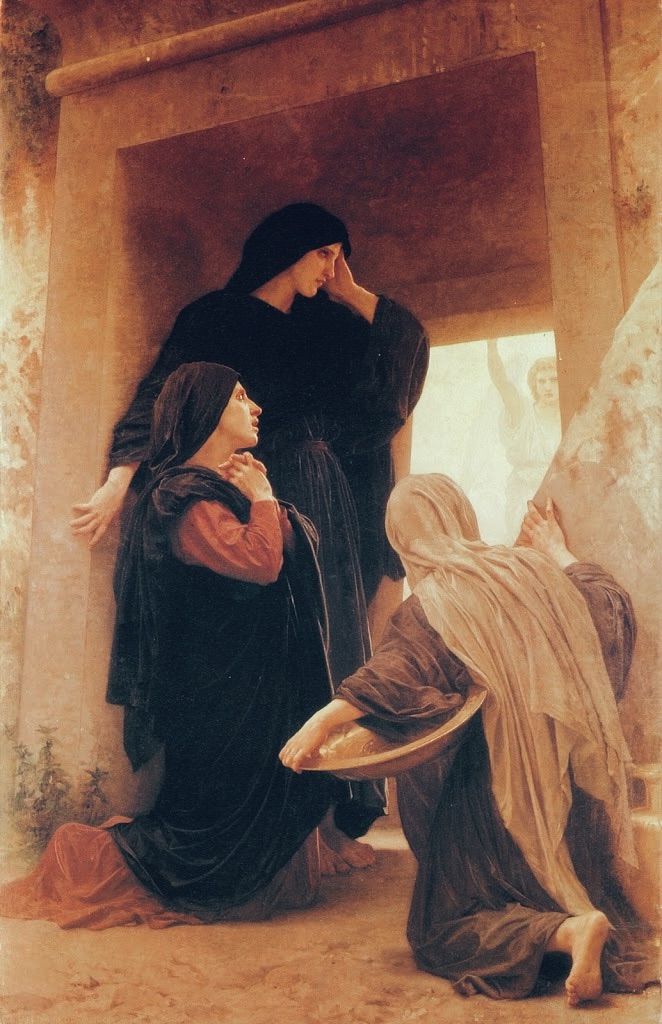
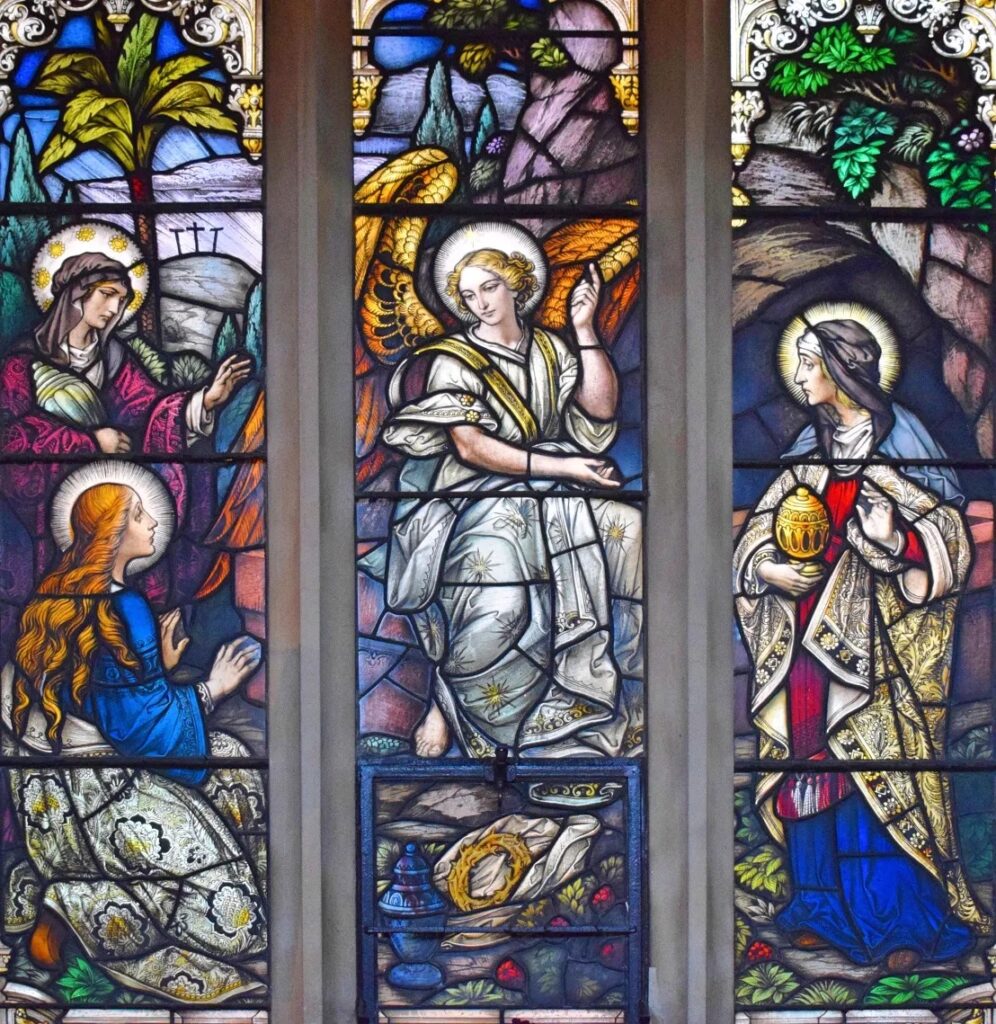
I usually post this favorite Easter painting, “The Three Marys at the Tomb,” by Bougereau.
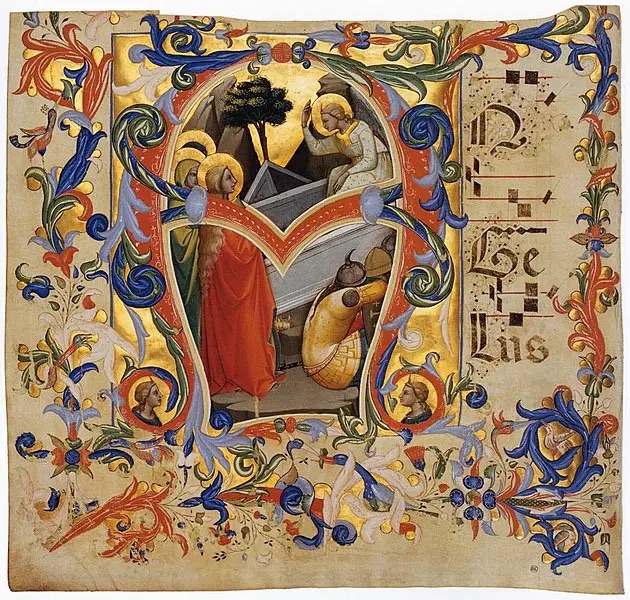
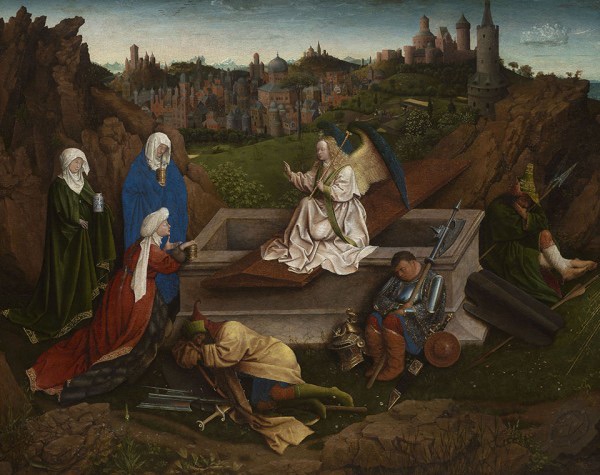
When I went in search of them, today, I found that many other artists have paid homage to them, too. I will post these works, below, and add artists and locations, later. I want to get this posted, today.
I do love this story, and share it when anyone dares to say women are not fit to carry the message of the Risen Lord.
Maybe, someday, this wanna be artist can pay homage, too.
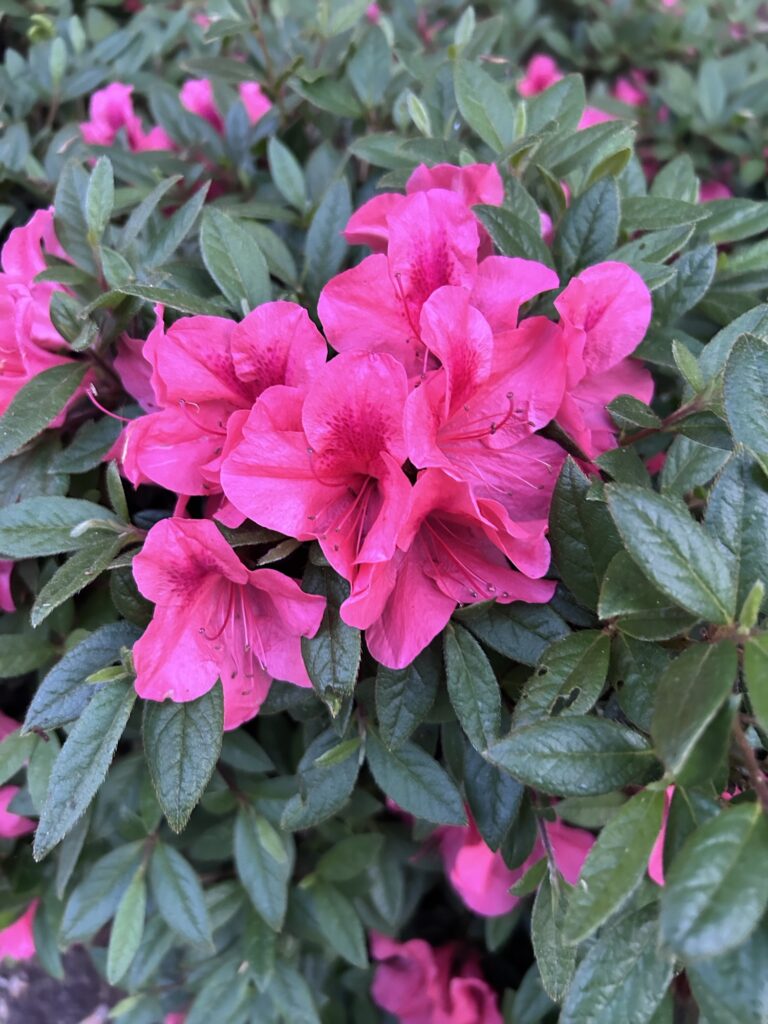
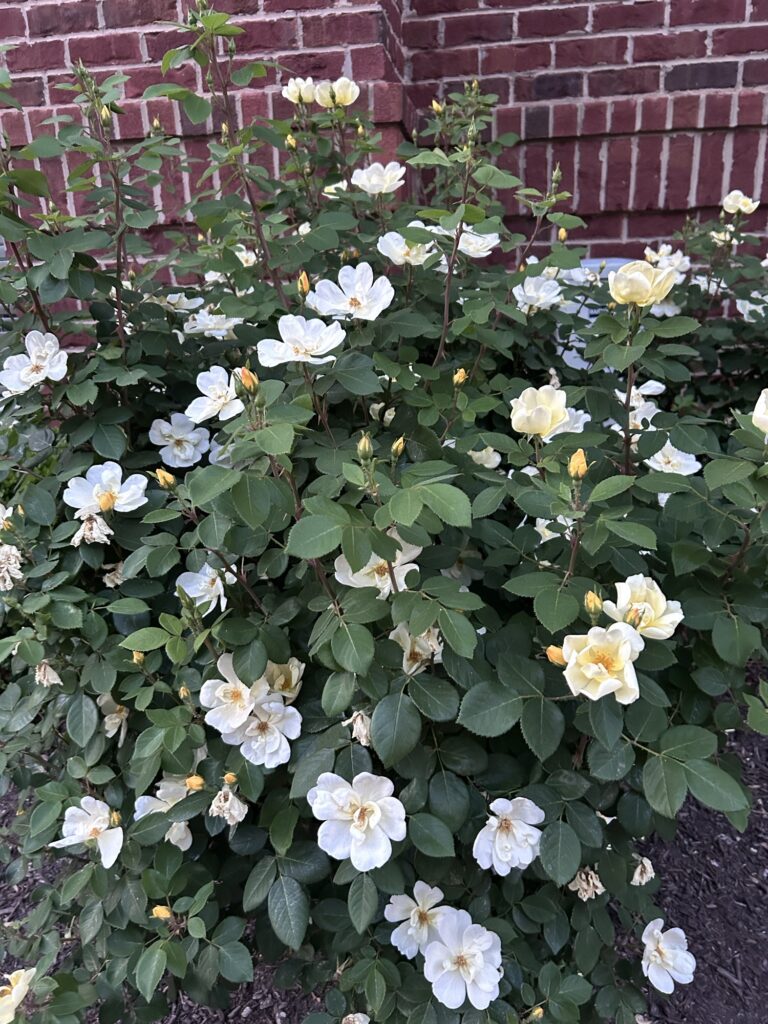
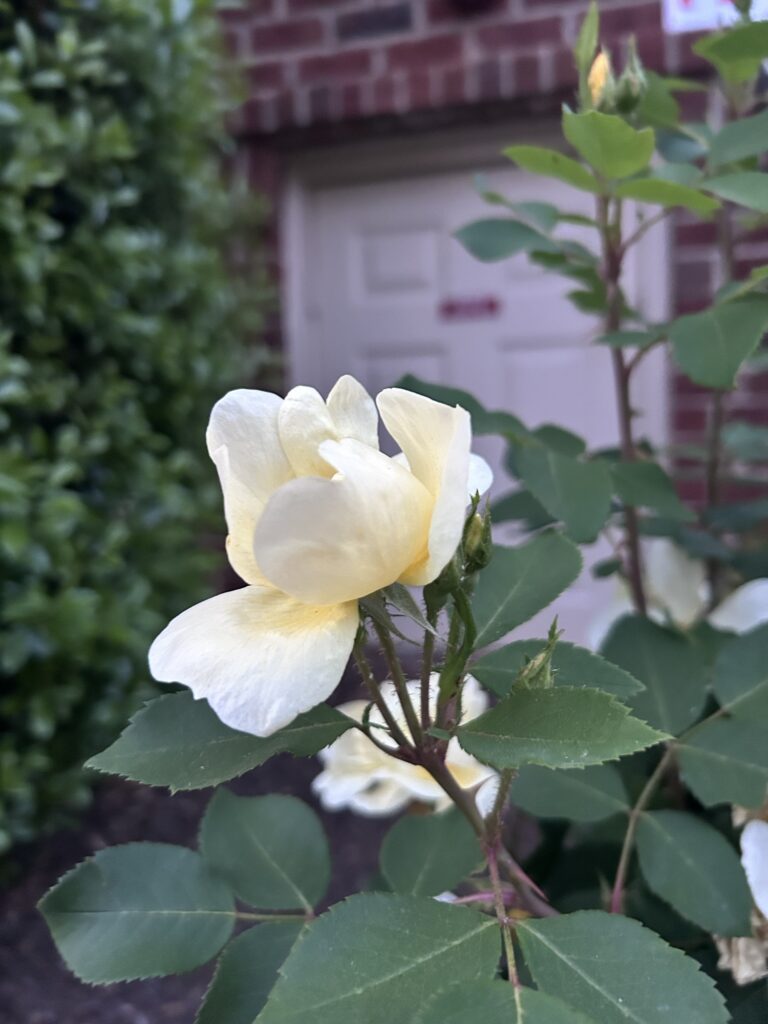
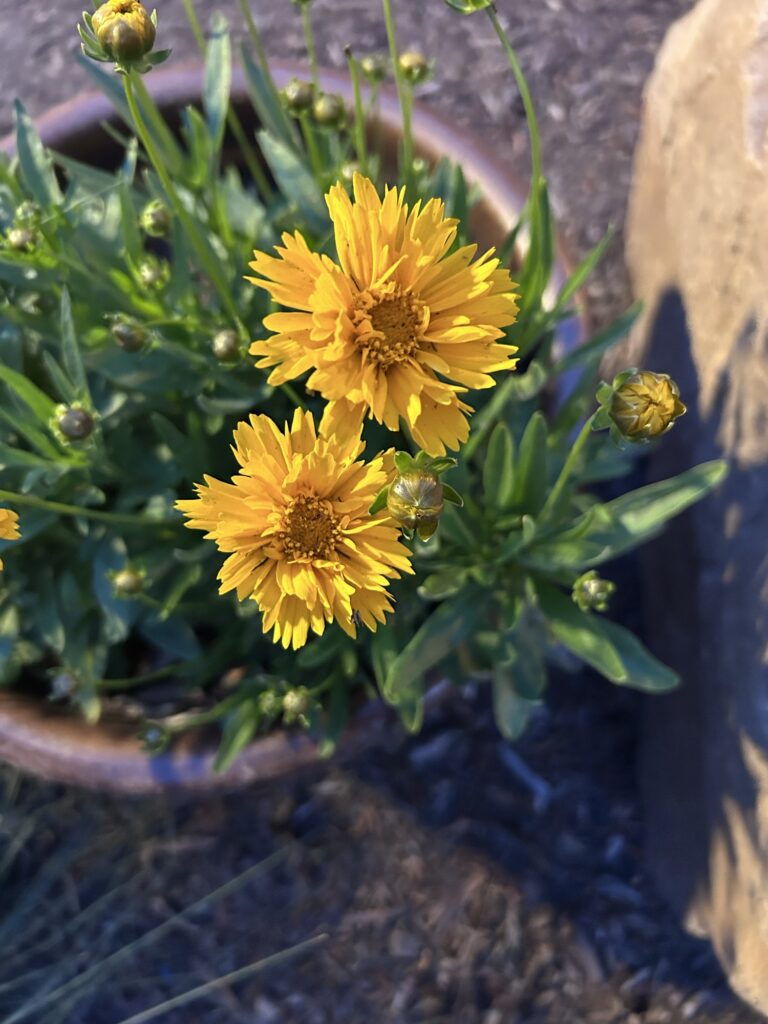
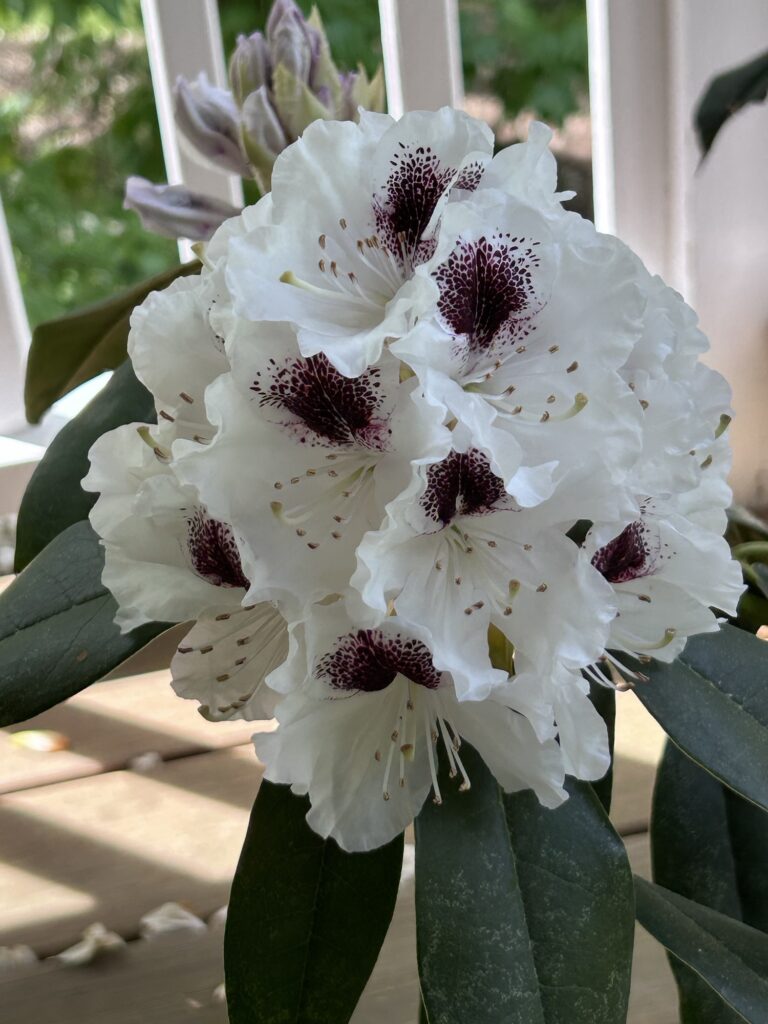
always makes me sad, but today, my flowers gave me joy!
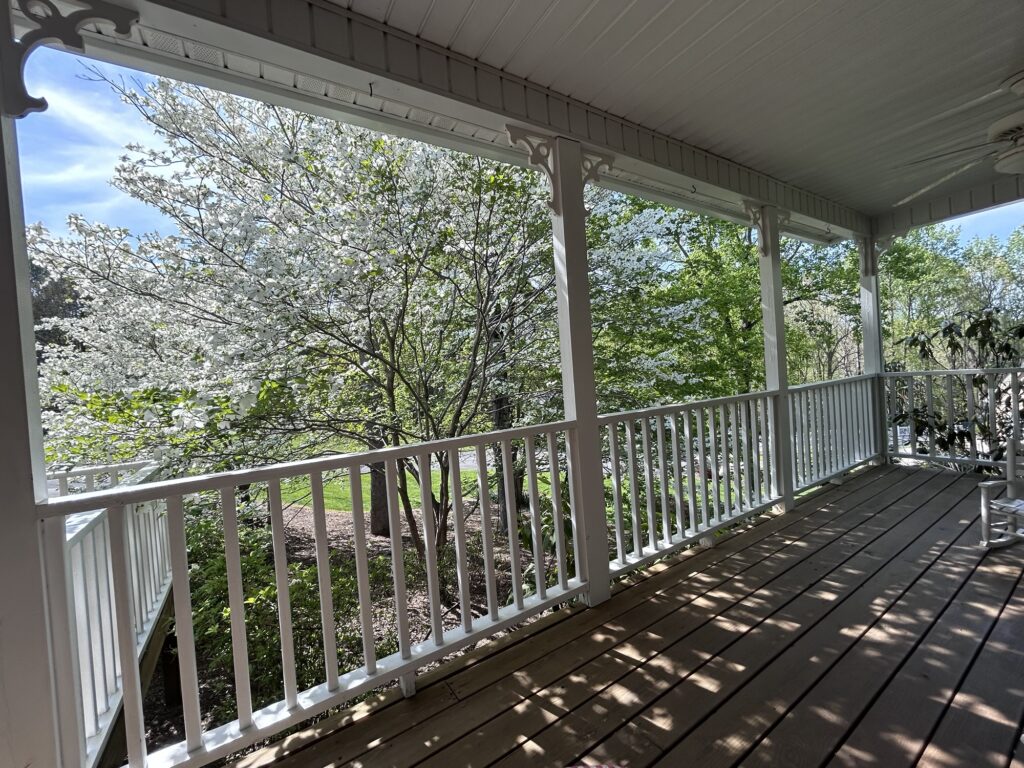
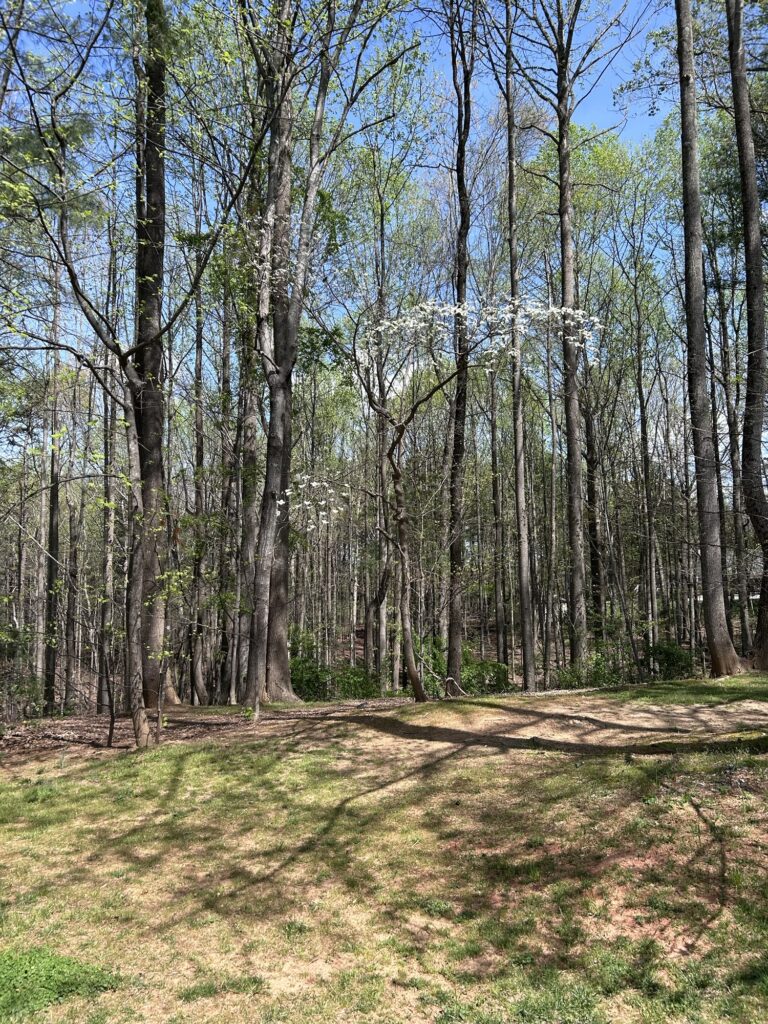
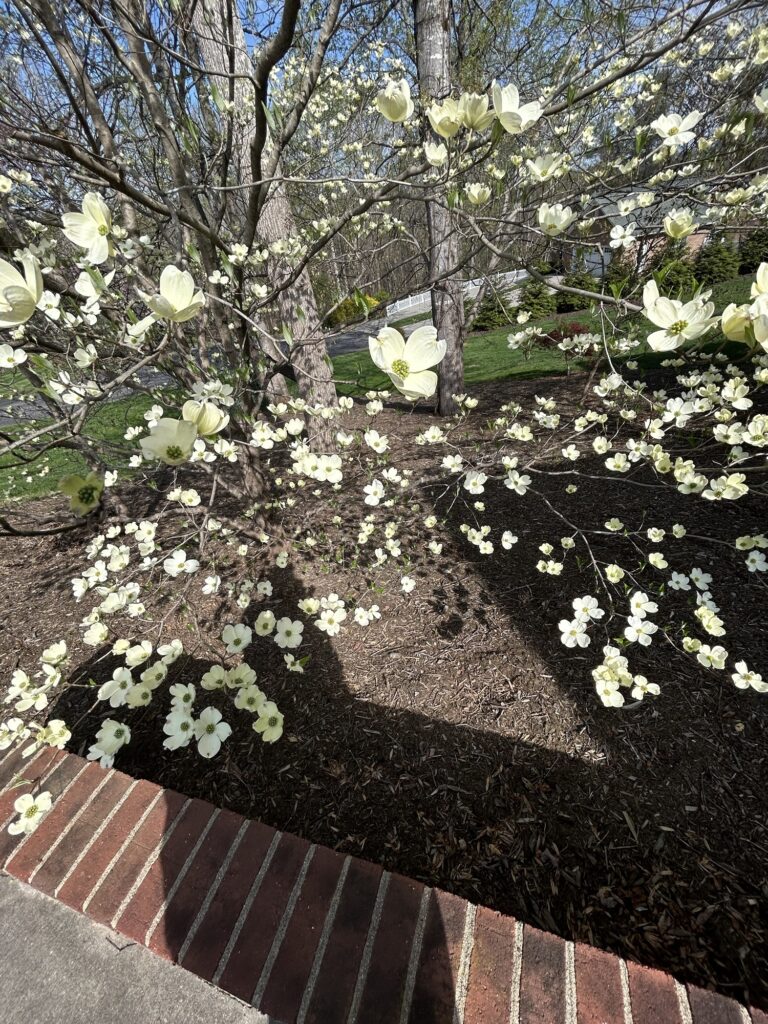
The dogwoods were especially glorious!They have reached their peak of purest white.Sitting on the porch looking through them was pure bliss!Looking up through them was like looking at a blizzard of blossoms!I confess to kissing the ones that reach over the railing.No matter when Easter falls, the dogwoods always bloom to announce their message of the cross.I love the nail marks in their bracts (petals)There’s a little one dancing at the edge of the woods.
Other flowers were in bloom, but these dogwoods stole the show on this Good Friday.
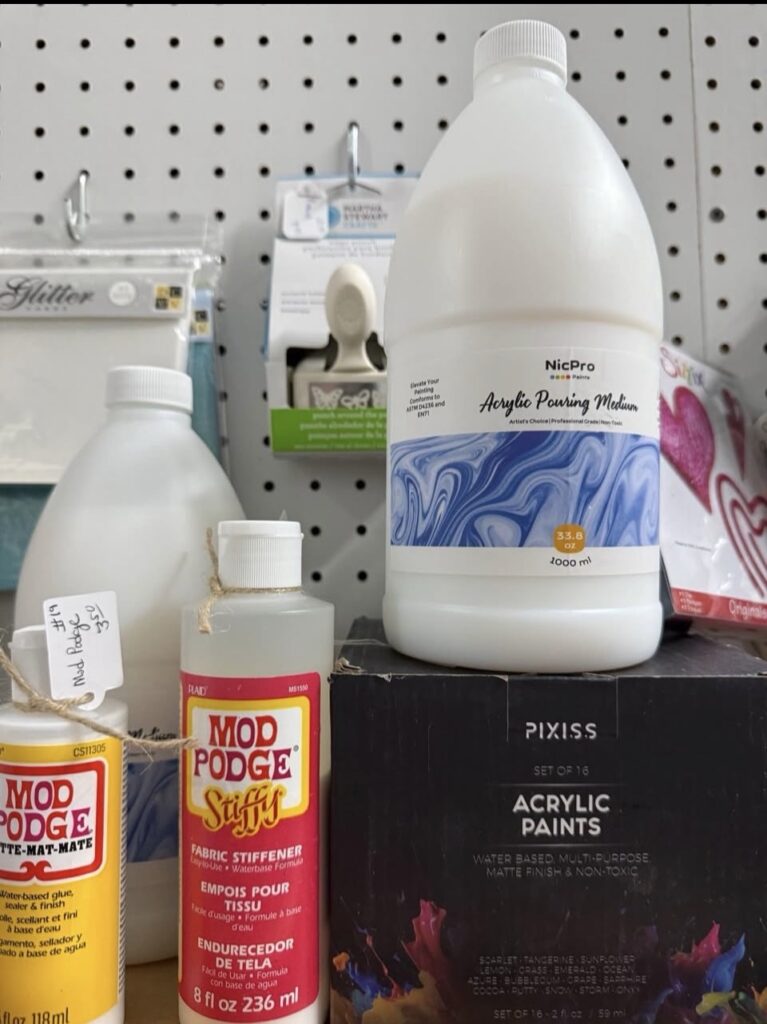
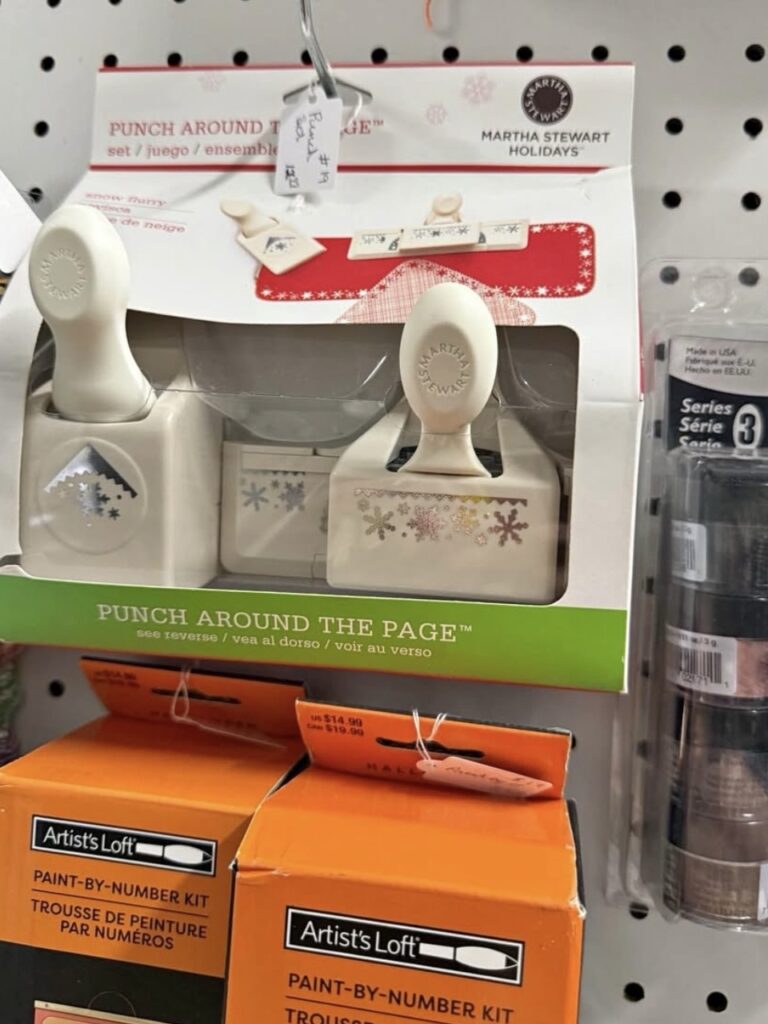
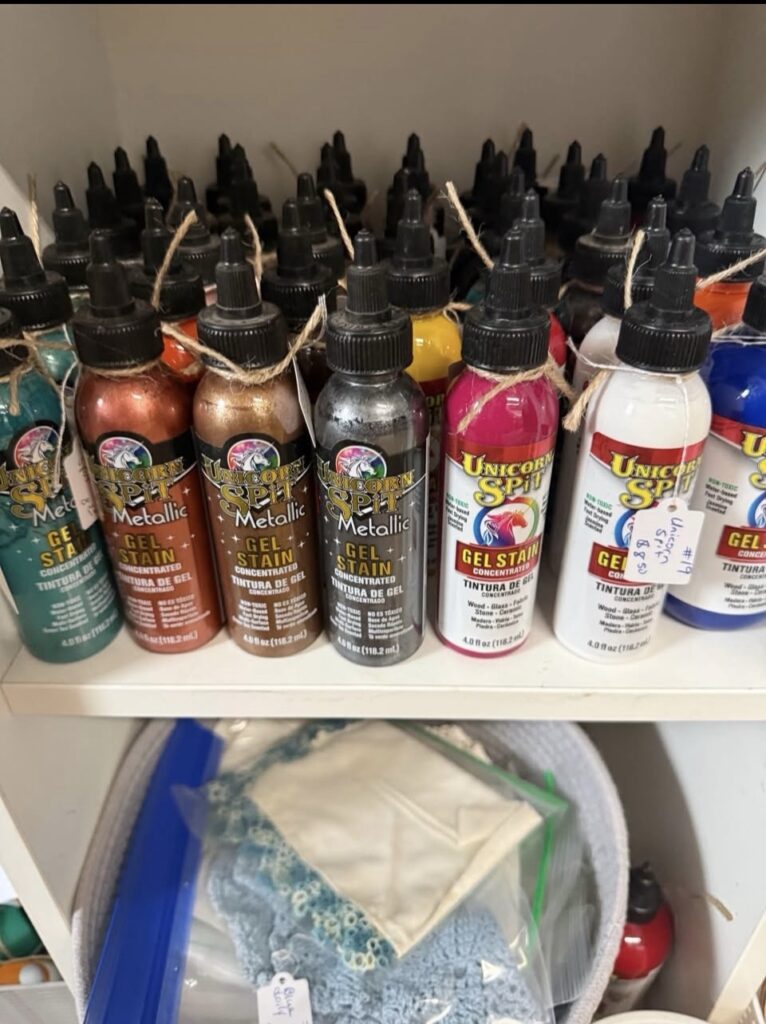
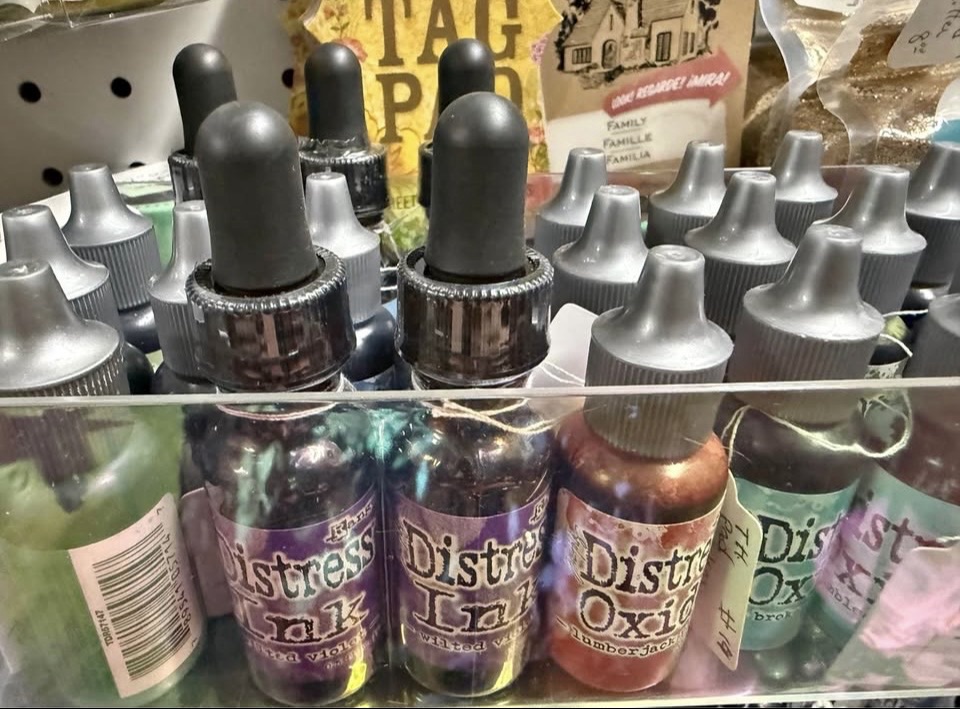
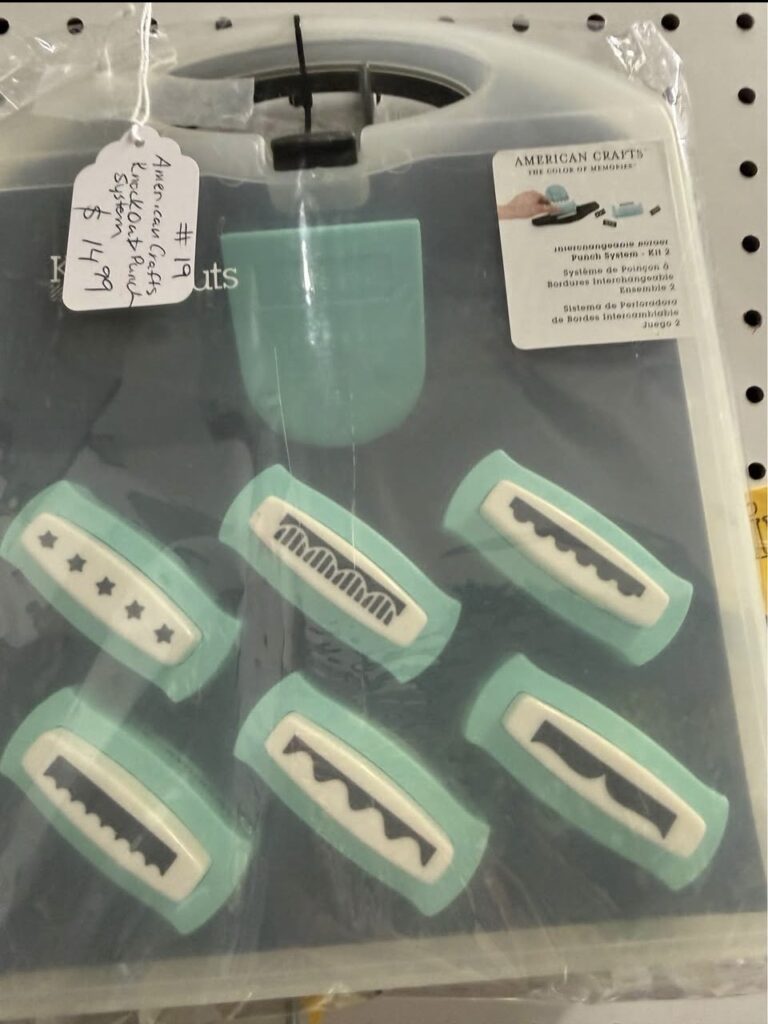
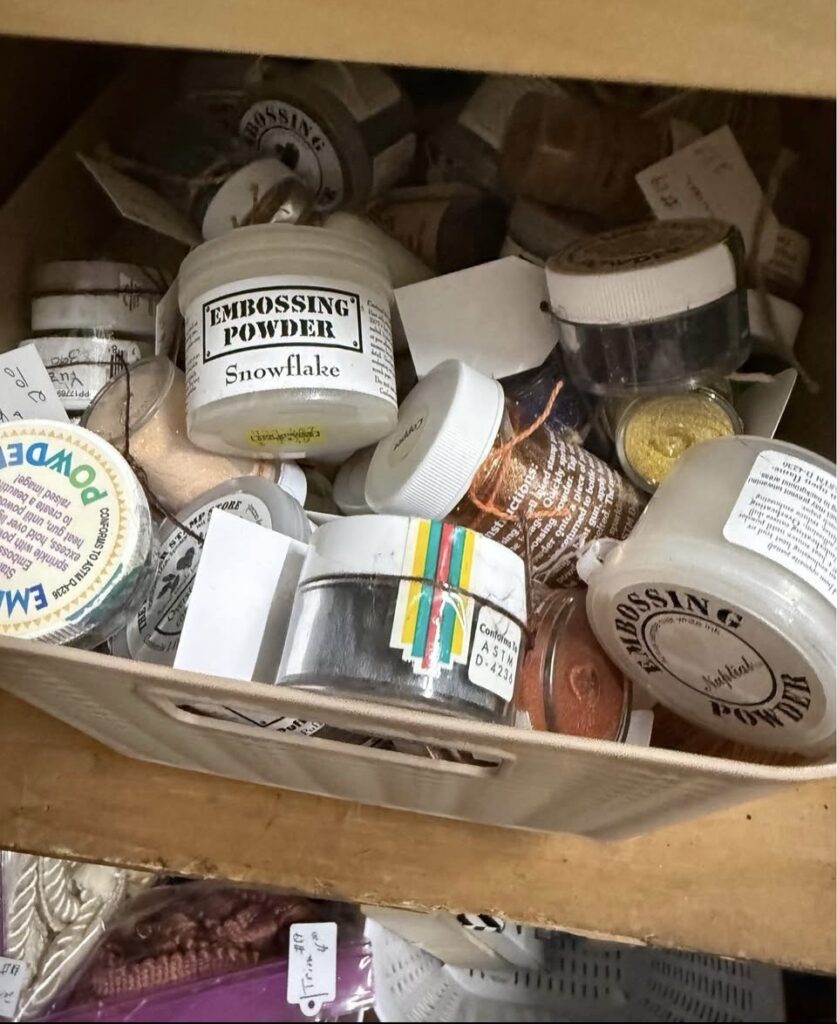
In our rural county, there’s not much in the way of craft stores. I found a booth in a local antique store that sells new and lightly used craft supplies! Here are examples:
I bought that Martha Stewart butterfly punch!‘Thinking about these…I love Unicorn Spit and the new stuff is pricey!Re-inkers!!!A strange punch contraption!Embossing powders!
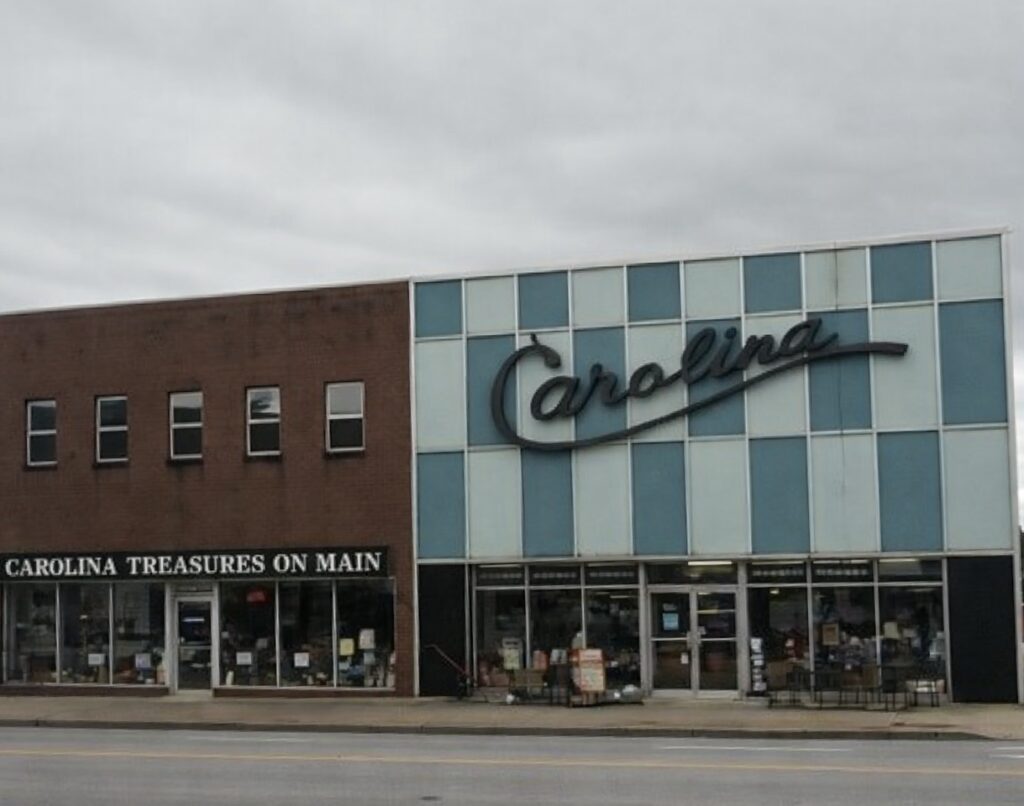
There were lots more goodies! Laura bought an unopened rock painting kit for her grandson. We made a little trip when she was visiting last week! Here’s the building:
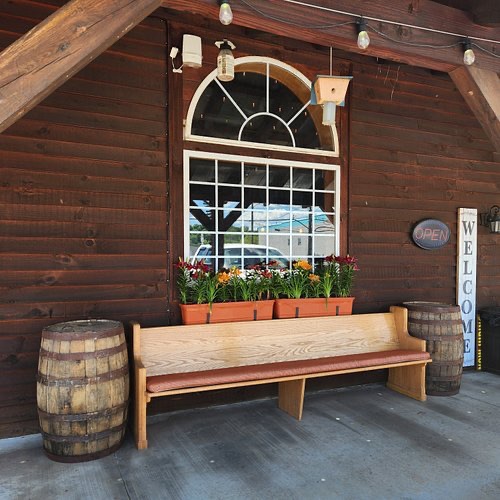
Carolina Treasures on Main
The address is 519 Main Street, N. Wilkesboro, NC 28659. The booth, Wilkes Craft, is #19. The proprietor is Allison Pinnix O’Neil.
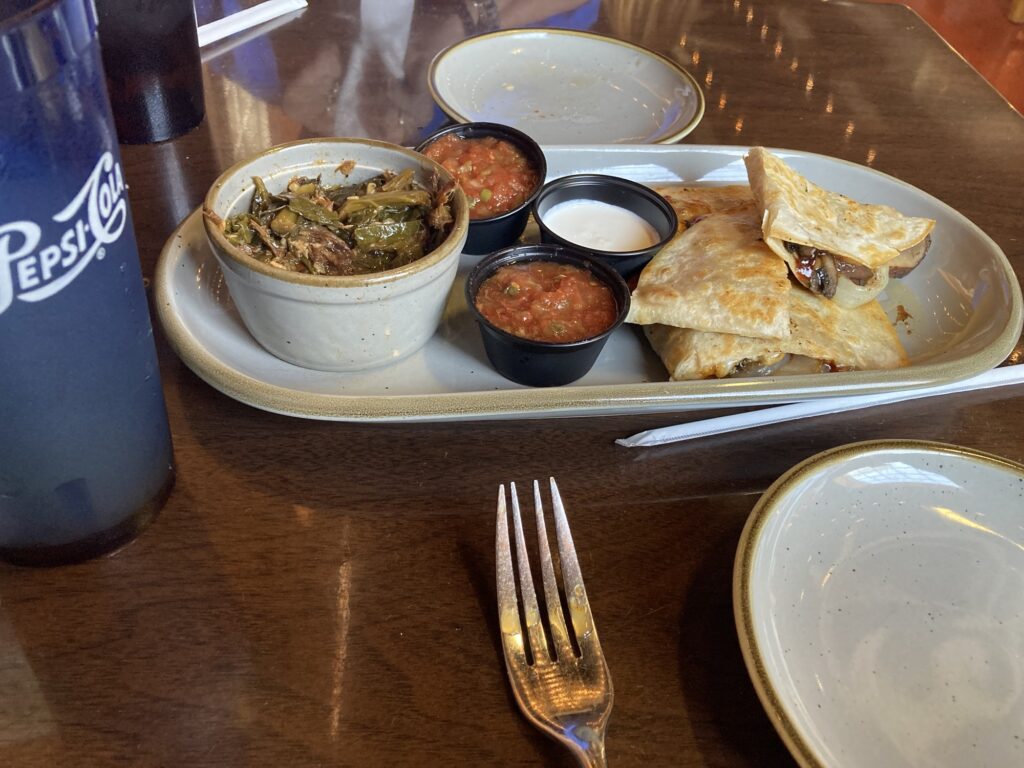
We also discovered the portobello quesadillas across the street at the Cinder Bistro!
The collards were Laura’s!
I’ll have to go back for a better exterior photo (and more quesadillas!)